You're on the tools
By the time you check, they've booked someone else.


Who owns.ai? Businesses that refuse to miss a job.
An AI assistant that wins jobs and looks after customers. Customers book whoever replies first - owns.ai replies instantly, day and night, and books the job while you're busy.
One platform · three ways AI works for you
owns.ai learns everything about your business from your website and your documents - then answers for you in three places.
A 24/7 AI employee in the corner of your website. It answers customers, books jobs and captures leads - while you work, and while you sleep.
A search bar that answers. Visitors type what they want to know and get a whole page written for them - from your website, in seconds.
Your organisation's own private AI app, in your logo and colours. Your team asks anything - it answers from your documents, photos and the web.
The revenue you never see
They don't leave a message. They book whoever answers first - and you never know they existed.
By the time you check, they've booked someone else.
Nobody is free to answer the website.
A question at 9pm is a booking your competitor takes at 9:01.
By tomorrow, they've hired someone else.
Your missed-revenue calculator
Move the sliders to match your business.
Walking out the door every month
$0/ month
Win back just one job a month and the Starter plan pays for itself 0× over.
An estimate: what owns.ai wins back depends on your business and how many visitors use the chat.
Stop the leak - build mine freeHow it works
That's the whole setup.
It reads every page that matters.
Your assistant appears, ready to talk.
No training, no flowcharts, no developer.
Build my AI freeTry it
A scripted demo for a made-up dental practice. Yours answers from your website - your prices, hours and policies.
Live, not a recording
Nova is owns.ai's own assistant, built from this website. Ask it anything - yours will know your business just as well.
Nova is also in the corner of every page - just where yours will sit.
Simple pricing
No card to try. Paid plans start with a 7-day free trial - cancel any time.
Questions
Still wondering? Our help centre has step-by-step guides for every platform.
Help & supportNo catch, and no card. The Free plan stays free forever with 15 visitor messages a month. Paid plans start with a 7-day free trial and cancel with one click.
All three answer from the same knowledge of your business. The AI Assistant is the chat in the corner of your website. JustAsk is a search bar on your website that answers with a whole page. Your AI App is a private, branded AI app at yourname.owns.ai for the people you let in. The first two are on every plan; the app comes with Starter and above.
When you can't pick up, many people go to your website instead. owns.ai answers them, books them in or takes a call-back request - and emails you about every one.
You paste your website address. It reads every page that matters - services, pricing, FAQ, contact and more, even pages built with JavaScript - and answers from them.
It answers only from your website and the answers you add. When it doesn't know, it says so and offers your contact details - and the question lands in your Knowledge Gaps list.
Paste one line of code into your site. Step-by-step guides cover WordPress, Shopify, Wix, Squarespace, Webflow and Google Tag Manager.
A monthly or yearly subscription through PayPal, starting with a 7-day free trial. Cancel any time and keep every feature until the period ends.
We email you at 80%. At the limit, your assistant shows visitors your contact details until the month resets - or you upgrade.
Someone is on your website right now with a question. Build your assistant free and see it on your site in about a minute.
AI Assistant
It learns your business from your website in minutes. Then it answers every customer instantly - and books the job, takes the lead or opens the ticket while you're busy, or asleep.
What it does
Every visitor gets a real answer and a next step, at any hour. You get the booking, the lead or the ticket - and a note in your inbox.
Prices, opening hours, service areas, policies, parking. It answers from your own website, word by word as it thinks, with links to the pages it used and the next questions people usually ask.
When someone's ready, a booking button appears. They see only the times you're really free, pick one, and get a confirmation - with a reminder the day before and a link to reschedule or cancel.
In its smart sales mode it works out what the visitor needs, makes the case for you and asks for their details at the right moment - not with a pop-up in their face. Every lead is emailed to you the moment it lands.
A complaint or a problem becomes a numbered ticket, pre-filled from the conversation and checked against what the customer actually typed. You both get an email; you track it to resolved.
Every Monday, a short email: the chats it answered, what it booked, the leads it won and how much happened after hours. Your dashboard shows the time and money it saved, all week long.
How it learns
Paste your address. owns.ai opens your site in a real browser and reads it like a new hire on day one - only faster.
The AI picks out your services, prices, hours, FAQ, policies and contact details - even pages built with JavaScript - and skips the menus and footers.
Search by meaning and by exact words, so a model number, a suburb or a product code gets the right answer - not a near miss.
Change a price on your site and it re-learns automatically - monthly on Starter, weekly on Growth, daily on Pro. Or rebuild any time with one click.
Something that isn't on your website? Type the answer once - your assistant uses it from then on.
Conversation memory is kept on our side, so nobody can feed it a fake history - and every chat stays private to that visitor.
Nights, weekends, public holidays, the lunch rush. Your competitors' phones go to voicemail - your website answers.
It replies in whatever language your visitor writes in - even if your website is only in English. Or fix it to one language, if you prefer.
Built from your website
owns.ai answers only from your information - and says so when it doesn't know. Every question it couldn't answer lands in one list, so you answer it once and it knows forever.
No invented prices, no made-up policies. It offers your contact details instead.
Every question it couldn't answer, in one list. Answer it once and it knows forever. On Growth and Pro.
Designed from your website
owns.ai styles your assistant from your website's own design - or mix any of 10 templates with 10 themes. Below is the real widget.
New · Bookings & callbacks
Your assistant shows visitors your real free times right in the chat and books them in. You get the booking; they get a confirmation.
Connected apps · paid plans
No retyping. Every booking your assistant takes is created as a job in your system - and updated when it changes.
Your AI sales agent
Every lead arrives scored, with what they want, how urgent it is and the best next step - plus a follow-up email already written in your voice.
Insights
Not a wall of transcripts - the numbers an owner actually cares about, and an AI analyst that reads the chats for you.
Time saved, staff cost saved, after-hours chats, the pipeline it opened and the work it won. On every plan.
It reads up to 200 conversations and reports back: what customers want, what frustrates them, the revenue you're missing and what to add. 2 to 30 reports a month on paid plans.
The line beside the chat button is written for each page: "Not sure which plan suits you?" on your pricing page. One tap and it's answering. Starter and up.
Search and read every chat. Export chats and leads to a spreadsheet on Growth and Pro.
Remove "Powered by owns.ai" on Growth and Pro, and choose exactly which websites may use your assistant.
Built for every business with a website
Dentists & clinics
"Can I book for Saturday?"
Asked at 10pm on a Thursday. Answered, booked and confirmed before they closed the tab.
Example conversations with made-up businesses, for illustration. See every industry
The honest comparison
| Compare | owns.ai | Hire a support person | Live-chat software | Do nothing |
|---|---|---|---|---|
| Monthly cost | From $29 | A full salary, per shift | Software fee + someone to staff it | Every job you miss |
| Available | 24/7/365 | Business hours | When someone is online | Never |
| Setup time | About 60 seconds | Weeks to hire and train | Days of configuration | - |
| Answers 100 visitors at once | Yes | No | No | - |
| Tells you what customers want | Every question, logged | If they remember | Transcripts only | No |
Live in minutes
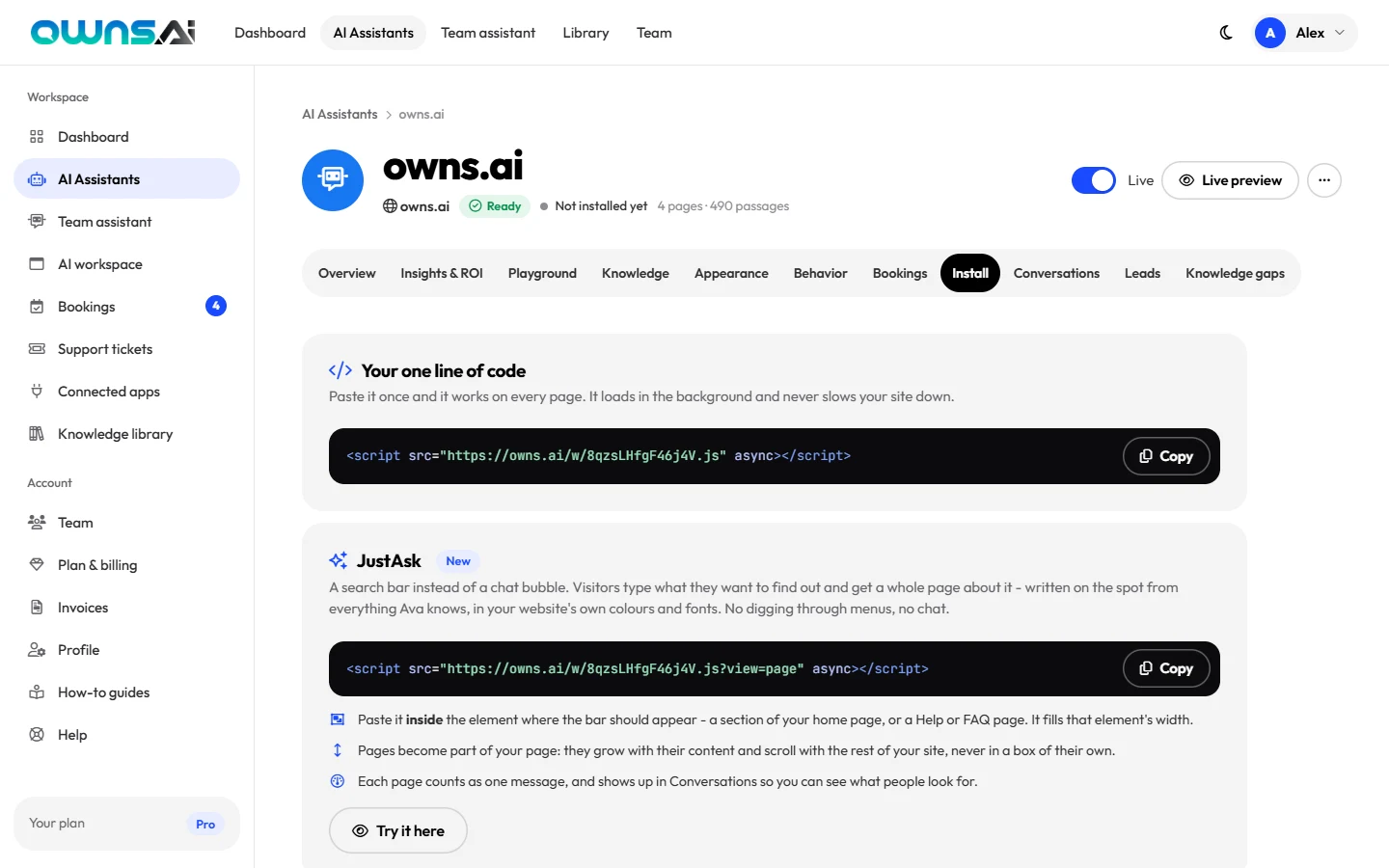
Paste one line before </body> - or into your builder's custom code box. Step-by-step guides for every platform, and a check that tells you it's live.
Questions
Plans, limits and the small print are all on the pricing page.
See pricingIt answers only from your website and the answers you add. When it doesn't know, it says so and offers your contact details. On Growth and Pro, every question it couldn't answer lands in your Knowledge Gaps list.
Paste your website and it builds in a minute or two. You can try it on a picture of your own site before you sign up, then install it with one line of code.
Yes. Bookings and call-back requests are on every plan, Free included. You choose your services, hours and time zone, and whether bookings confirm instantly or wait for you.
Not live in the chat. When someone wants a person, it takes their details, books a call-back or opens a support ticket - and emails you straight away.
It designs itself from your website's own fonts, colours and shapes, on every plan. Or pick from 10 templates and 10 themes - 2 of each on Free, all of them on paid plans.
15 a month on Free, then 1,500, 6,000 or 25,000 on Starter, Growth and Pro. A message is one visitor question and its answer; your own tests don't count.
Give them an answer in seconds. Build your AI assistant free and see it on your own site in about a minute.
Also from owns.ai: JustAsk Your AI App
JustAsk
A search bar that doesn't hand back ten links. Visitors type what they want to know and get a page written there and then - prices, steps, tables and where to go next - from everything on your website.
Why it works
Menus, ten-result searches and PDFs send people back to Google - and to your competitors. JustAsk gives them the answer, laid out properly, in the time it takes to read it.
23 results
Yes - sudden storm damage to your home and contents is covered, up to your sum insured.
A whole page, not a chat bubble
Written on the spot for that one question - and part of your own page, so it scrolls with your site instead of sitting in a box.
Before a word is written
A separate step asks one question before every page: does your website actually cover this? The page that follows is honest about the answer.
"How much is an EV charger, installed?" - Spark Electrical's prices page has it, so the visitor gets the full page.
"Do you install EV chargers in Newcastle?" - chargers yes, Newcastle isn't on the site. It says so.
"Do you fix solar panels?" - no invented service. A short page that says your site doesn't cover it, and what you can help with.
Looks like it was always there
When your assistant is built, the AI reads your website's design - its palette, fonts, corner shapes, outlines and spacing - and JustAsk wears it.
Suggested questions
Suggested questions turn on a reel right over the bar. After every page, the questions people also look for join it - so one answer leads to the next.
Your view
Every search is kept in your dashboard, word for word. It's the most honest market research you'll ever get.
See what people asked and the page they got - marked JustAsk, beside your chats.
JustAsk and your AI Assistant share one brain. Teach either one an answer and both know it - and "Chat with us" on every page opens the chat.
On Growth and Pro, searches it couldn't answer land in Knowledge Gaps. Answer once; every page after knows.
It writes from your assistant's knowledge, which re-learns your site as it changes - monthly to daily on paid plans.
Ask in Spanish, get the page in Spanish - straight from an English website.
One line of code
Paste the line inside the element the bar should fill. It takes that element's width, and the pages it writes grow right there on your page.
Yes - JustAsk comes with every assistant, on every plan. Each page counts as one message, exactly like a chat answer.
No. Use JustAsk on its own, the chat on its own, or both - they share the same knowledge. With both installed, "Chat with us" on a page opens the chat.
Before writing, it checks whether your website covers the question. If it only partly does, the page says what isn't on your site; if it doesn't, it says so plainly and shows what you can help with.
No. The bar and its pages are sealed off from your site's code, so neither can break the other - and they're styled from your site's own design.
Short enough to read: the answer up top, then up to six sections - around 700 words at the very most, usually far less.
Yes. Every search and the page it got are in Conversations, marked JustAsk. On Growth and Pro, the ones it couldn't answer appear in Knowledge Gaps.
JustAsk comes with every owns.ai assistant. Build yours free from your website, then add the bar with one line.
Also from owns.ai: AI Assistant Your AI App
Your AI App
A private AI chat app at yourname.owns.ai, in your logo and colours. It knows your documents and your website, reads files and photos, searches the web - and only the people you let in can use it.
What it knows
Handbooks, price lists, policies, procedures, your website. Your people stop digging through folders and asking the same questions - they just ask the app.
Your knowledge library
PDFs - even scanned ones - Word, Excel, PowerPoint, images and text files. Every answer shows the document it came from.
What it can do
It looks, reads, searches and writes - and always checks your business's own knowledge first.
Snap a damaged delivery, a part or a page. It looks, and answers against your policies.
Attach a PDF, a spreadsheet or a deck - up to five at a time - and ask about it.
Switch on web search for live answers - with the sources shown, so you can check them.
Emails, summaries, translations, formulas, code - with general knowledge on top of yours. Switch it off if you prefer it to stick to your business.
Dictate a question, have answers read aloud, paste a screenshot, drag in a file or use the camera.
Search past chats, pin the useful ones, rename and export them. Regenerate any answer.
You decide who gets in
Staff, contractors, members, clients - give exactly the right people a way in, and take it away in a click.
Your brand, top to bottom
From the sign-in page to the last answer: your name, your logo and your colours on your own address.
Every plan · Team Assistant
Upload your handbooks, price lists and policies. Your Team Assistant answers your staff from them - privately.
What businesses use it for
"Where do I log my hours?" Onboarding answered from your handbook - from day one.
"Trade price on the 250L unit?" Price lists and specs, instantly, on the road.
A photo of a part and the manual's answer - from a phone, on site.
Policies, fees and procedures, so every answer is the same right answer.
Simple, shared credits
Your plan includes credits every month. Everyone draws from the same pool, the cost is shown before each message is sent, and a failed answer costs nothing.
Need more? Top up from $12 for 1,000 - bought credits never expire. Your app never uses your website assistant's messages.
Starter, Growth and Pro - each with its own monthly credits. Every paid plan starts with a 7-day free trial.
A subdomain of owns.ai that you choose - like yourname.owns.ai. Your own domain isn't supported yet.
Your account does, from one pool of credits: 1 per answer, plus 2 for a photo, 3 for a file and 5 for a web search. You can set a monthly limit for each person, and top up any time.
No. The app answers from your website knowledge and your Public documents - and Team documents if you allow it. Private documents are never used.
The Team Assistant lives inside owns.ai for your seats, and can read each person's private documents for them. Your AI App is a branded app on its own address, for anyone you let in - staff, contractors, members or clients.
PDF, Word, PowerPoint, Excel, CSV, text, Markdown, JSON, XML and HTML files, and photos (PNG, JPG, WebP, HEIC) - up to 20 MB each and five per message.
Pick your name, add your logo and documents, and invite your team. Your app is live in minutes.
Also from owns.ai: AI Assistant JustAsk
Industries
From the electrician on the tools to the bank with a million customers and the council with a hundred services - owns.ai learns your organisation from your website and documents, then answers for you around the clock.
Small business
Trades, clinics, restaurants and shops: the customer who gets an answer first books first. owns.ai answers in seconds, books the job and emails you the lead.
Answers quote requests and books call-outs while you're up a ladder or asleep.
See how it helpsHandles burst pipes, hot water quotes and blocked drains while you're under a sink.
See how it helpsBooks check-ups and answers health fund questions while your team is with patients.
See how it helpsTakes table bookings and answers dietary questions while your floor team runs service.
See how it helpsAnswers same-day delivery questions and books wedding consults while you're at the bench.
See how it helpsAnswers colour, price and treatment questions and books appointments while you're with a client.
See how it helpsBooks logbook services and answers roadworthy questions while you're in the workshop.
See how it helpsQualifies quote requests and books end-of-lease and regular cleans while your team is on the job.
See how it helpsAnswers fee, rebate and referral questions and books new patients while you're mid-session.
See how it helpsAnswers membership and timetable questions and books free trials while the front desk is empty.
See how it helpsQualifies renovation and extension enquiries and books site visits while you're running a job.
See how it helpsBooks lawn, garden and landscaping quotes while you're out with the mower or the excavator.
See how it helpsBooks vaccinations and check-ups and gives owners your emergency details when the clinic is closed.
See how it helpsCaptures vendor leads, books appraisals and answers open home questions while you're at an auction.
See how it helpsMedium business
Firms, clinics, schools and stores with front desks and inboxes to match. One assistant gives every customer the same right answer, and your staff get one too.
Answers fee, hours and doctor questions and books appointments, so reception can focus on the room.
See how it helpsExplains your practice areas and fees, qualifies new matters and books consultations, day or night.
See how it helpsAnswers fee, deadline and paperwork questions and books tax appointments, even in the busiest weeks.
See how it helpsAnswers tenant and landlord questions, logs maintenance requests and books rental appraisals.
See how it helpsAnswers check-in, parking and amenity questions in any language and points guests to book direct.
See how it helpsAnswers enrolment, fees and term date questions and books school tours for prospective families.
See how it helpsBooks test drives and service appointments and scores every buyer lead for your sales team.
See how it helpsAnswers shipping, returns and sizing questions on Shopify and more, and turns order issues into tickets.
See how it helpsAnswers families' questions about care types, fees and visiting, and books tours of your homes.
See how it helpsAnswers candidate questions, captures employer leads and books recruiter calls around the clock.
See how it helpsCorporations
Millions of questions about products, fees, policies and forms. owns.ai answers from your approved content only, shows its sources, and lightens the load on your contact centre.
Answers fee, card and process questions from your published pages, and routes account matters.
See how it helpsExplains cover and claims steps from your published PDS, and points policyholders to their schedule.
See how it helpsAnswers rollover, fee and contribution questions from your pages, and points members to advice.
See how it helpsAnswers plan, roaming and setup questions from your help centre, in the customer's language.
See how it helpsExplains bills, moving and outage steps from your published pages, and routes account questions.
See how it helpsAnswers returns, delivery and store questions from your website, and tickets anything about orders.
See how it helpsAnswers visiting, parking and admission questions from your pages, and never gives medical advice.
See how it helpsAnswers course, enrolment and campus questions from your pages, for local and international students.
See how it helpsGovernment
Residents shouldn't need to dig through a huge website or a PDF to find an answer. owns.ai answers from your published information, in their language, at any hour.
Bin days, permits, fees and opening hours answered from your site, day and night.
See how it helpsTurns long guidance and eligibility pages into clear answers, with links to the source.
See how it helpsFares, concessions, routes and lost property answered from your published pages, any hour.
See how it helpsClinic hours, vaccination programs and service details shared from your site - never a diagnosis.
See how it helpsThings to do, events, getting around and opening times answered in the traveller's own language.
See how it helpsBanks, insurers, enterprises and government
Paste your public website and a working pilot is built in minutes - answering only from your published content, linking every answer to its source and saying so when it doesn't know.
Build your AI assistant free from your website and see it answer in about a minute.
Start free with no card. Every paid plan includes a 7-day free trial, and you can cancel any time.
Volume pricing, invoiced billing, white-label for your clients and a direct line to the team.
Something not covered here? Real people answer every message within one business day.
Ask us anythingEach question a visitor sends your assistant counts as one message. Its reply is included. Tests you run in your own dashboard playground don't count.
A seat is one person with their own owns.ai login on your account - you count as the first. Invite colleagues as admins (they can manage assistants, documents and the team) or members (they use the Team Assistant and the knowledge library). Free includes 1 seat, Starter 3, Growth 10 and Pro 30.
PDF (including scanned ones, read by AI), Word, PowerPoint, Excel, text, Markdown, CSV, HTML and images - or articles you write in owns.ai. Each plan has a document count, a storage total and a largest-file size; you'll find them in the table above.
You choose, per document. Private: only you, through your Team Assistant. Team: everyone on your account. Public: your website assistant can use it to answer customers too - only owners and admins can publish. Nobody, not even an admin, can open someone else's private document.
Your business's own private AI chat app at your own subdomain, like yourname.owns.ai, designed in your brand - logo, colours, fonts, banner, background and sign-in page. Your employees, and anyone else you approve, sign in to ask about your business, analyse photos, read and summarise documents and search the web. You choose how people get in: approve each request, let your company email domain straight in, or invite only. It's included with Starter and above.
Every answer in your workspace uses credits from your plan's monthly allowance: one per answer, plus a little more when it analyses a photo, reads a file or searches the web - the cost is shown before anyone sends. Your allowance refreshes on the 1st of each month. If you need more, buy a top-up at any time; purchased credits never expire. You can also set a monthly credit limit per person. Credits are separate from your website assistant's visitor messages, and an answer that fails is never charged.
Choose a paid plan and approve the subscription in PayPal. You aren't charged for the first 7 days, and you can cancel before then at no cost. One free trial per account.
Yes. Pick a new plan from Billing and approve it in PayPal; your previous subscription is cancelled automatically so you're never billed twice.
You keep every paid feature until the end of the period you've paid for. Then your account moves to the Free plan - your assistants and everything they learned are kept.
The free trial lets you try everything first, so partial periods aren't refunded except where the law requires. If something's gone wrong, write to us - we're reasonable people.
Everything PayPal accepts: your PayPal balance, and debit or credit cards through PayPal - you don't need a PayPal account to pay by card in most countries.
Big companies have teams answering questions around the clock. A plumber, a dentist or an online shop has a phone that rings while they're busy doing the actual work. We built owns.ai to close that gap.
Most small and growing businesses already have the answers their customers want. They're on the website - the prices, the opening hours, the delivery areas, the returns policy. The problem is that people don't read websites, they ask questions. And when nobody answers, they leave.
Chatbots were supposed to fix this, but the old kind needed weeks of setup, decision trees and someone to maintain them. Modern AI changed what's possible: an assistant can now read a website the way a new employee would on their first day, understand it, and explain it to customers in plain language.
So that's what owns.ai does. Paste your web address, and about a minute later you have an assistant that knows your business - no developer, no training data, no project.
The same idea works inside a business too. The answers your staff need are buried in handbooks, price lists and policy documents. Drop them into the knowledge library and your team gets a private assistant that knows them - while each person only ever sees what they're allowed to.
owns.ai is built, owned and operated by XTO Pty Ltd (ACN 702 801 410), an Australian company based in Sydney, at L1 457 Elizabeth Street, Surry Hills, NSW 2010, Australia. You can reach the team any time at [email protected].
Your assistant answers from your information, and says "I don't know" when it doesn't. A wrong answer costs more than no answer, so we designed against them.
We never sell data and never use your customers' conversations to train AI models. Visitors' IP addresses are hashed, not stored.
If it takes more than a minute to understand, we haven't finished designing it. One URL in, one line of code out.
We open your pages in headless Chrome - the same engine your visitors use - and wait for everything to load, so sites built with JavaScript are read properly.
Our AI looks at your home page's links and chooses the pages that hold real information: services, products, pricing, FAQ, policies and contact details.
Website text and your uploaded documents are cut into passages and turned into "embeddings" - mathematical fingerprints of meaning - stored in a secure SQL Server database, each passage tagged with who may read it.
When someone asks a question, we find the passages that best match its meaning - only among those they're allowed to see - and our AI writes an answer using just those, streamed back in real time.
Quick answers below. Or write to us - real people reply to every message within one business day.
Clear, illustrated walk-throughs for everything: building your assistant, installing it, taking bookings, teaching it new answers and bringing in your team.
Browse all guidesCopy your line of code from Dashboard → your assistant → Install, then:
Install a header & footer code plugin (for example "WPCode"), paste the line into the Footer box and save. Or add it to your theme's footer.php just before </body>.
Go to Online Store → Themes → … → Edit code, open theme.liquid and paste the line just before </body>. Save.
Open Settings → Custom code → Add custom code, paste the line, choose "All pages" and place it in Body – end. Publish your site.
Go to Settings → Advanced → Code Injection and paste the line into Footer. Save.
Open Project settings → Custom code, paste the line into Footer code, save and publish.
Create a new Custom HTML tag, paste the line, trigger it on All Pages, then submit and publish the container.
Paste the line just before the closing </body> tag on every page - or in the shared footer template your pages use.
Open Knowledge library and drag your files in - PDF, Word, PowerPoint, Excel, text, Markdown, CSV, HTML or images. Scanned PDFs and photos are read by AI. You can also press Write article to add knowledge that isn't in any file. Each document is ready a few seconds after upload.
Private documents are yours alone. Team documents are available to everyone on your account through the Team Assistant. Public documents also teach your website assistant, so customers get answers from them - only owners and admins can publish. You can change a document's access any time; it takes effect instantly.
Go to Team → Invite, enter their email and choose Admin or Member. They get an email with a link to create their own login (you can also copy the link and send it yourself). Seats depend on your plan.
Admins can manage assistants, publish documents and invite or remove people. Members use the Team Assistant, add their own documents and see the dashboard. Only the owner manages billing and decides who is an admin.
Yes. Open Team assistant → Settings, copy its one line of code and paste it into your intranet or staff portal. Your people sign in inside the widget with their owns.ai login, and each sees only what their access allows.
Open your assistant and press Rebuild knowledge. Paid plans also re-learn automatically on a schedule. To add a single new page, use Knowledge → Add a page - it's learned in seconds.
Add a custom answer under Knowledge - written by you, it always takes priority. On Growth and Pro, Knowledge Gaps lists every question it couldn't answer so you can fill them in one click.
When a visitor wants a quote, a booking or to be contacted, your assistant offers a short form. The details are saved under Leads and emailed to you immediately. Set a different alert address under Behavior.
Go to Plan & billing. You can switch plans or cancel there; when you cancel you keep every paid feature until the end of the period you've paid for.
Under Invoices in your account. Each one can be printed or saved as a PDF. Add your company and tax details under Profile and they'll appear on them.
Practical guides to AI customer service: writing answers it can use, turning conversations into customers, and reading what your visitors really want.
Step-by-step guides with screenshots for the features that matter most: building and installing your assistant, teaching it, taking bookings, and putting AI to work for your team.
Most businesses are answering customers within ten minutes. Follow these three guides in order.
Ask us anything about your assistant, your plan or your website. We reply to every message within one business day.
Connect the job-management app you already use, and every appointment and call-back your assistant takes arrives there as a client plus a request, job or lead, and stays up to date.
If you run your business in a job-management app, there's no need to copy bookings across by hand. Connect it once and every appointment and call-back your assistant takes is created there automatically. When you confirm, move or cancel a booking in owns.ai, the app is updated too.
| App | Connects with | Each booking becomes |
|---|---|---|
| Jobber | Sign in to Jobber | A client (or finds them by email) and a request, with an assessment at the booked time if you like |
| ServiceM8 | API key | A client, a job with its contact and a note, and a scheduled booking |
| Housecall Pro | API key | A customer and either a lead or a job scheduled at the booked time |
| simPRO | Your simPRO address and an API key | A customer, a site and a lead |
| Webhook | Any web address | A signed JSON message for every new booking and every change: use it with Zapier, Make, n8n or your own system |
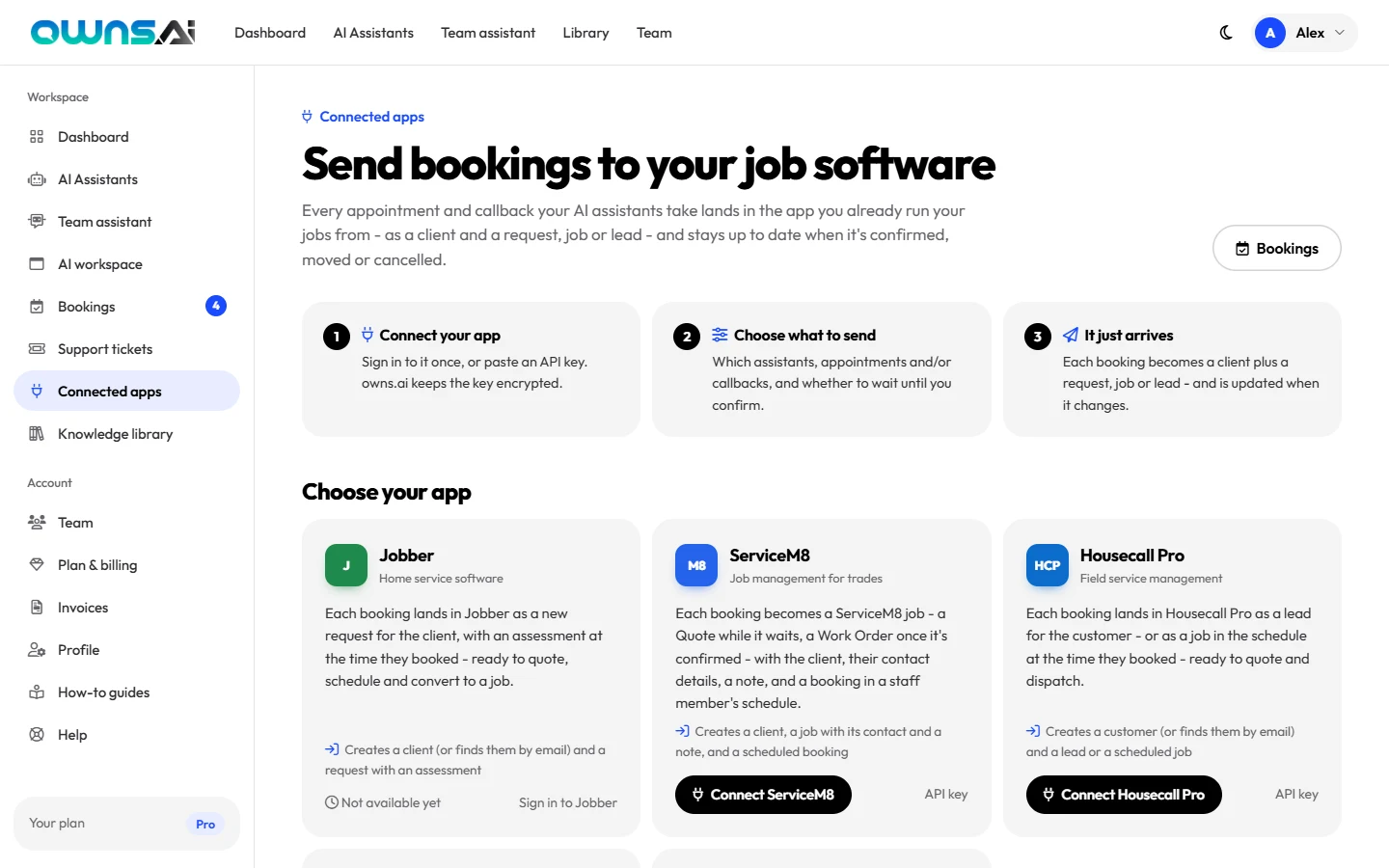
Choose Connected apps in the sidebar (or the Connected apps button on the Bookings page) and find your app under Choose your app.
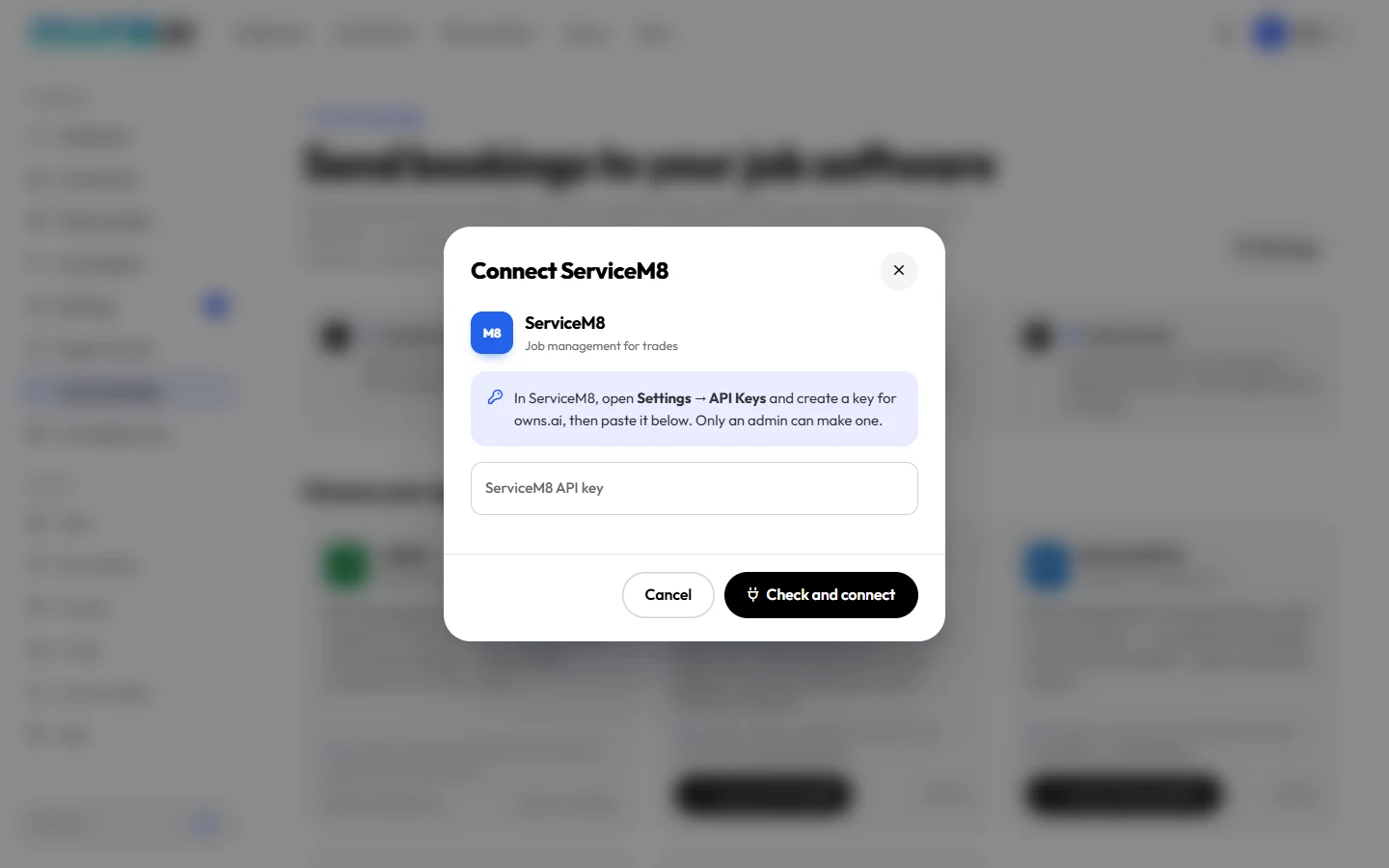
For Jobber, press Sign in to Jobber and approve the connection. For the others, press Connect and paste the API key; the dialog tells you where to find it. In ServiceM8, for example, it's under Settings → API Keys. Press Check and connect: owns.ai tests the key before saving it, and keeps it encrypted.
Pick which assistants' bookings to send, whether to send appointments, callbacks or both, and whether to wait until you've confirmed a booking. Each app has its own options too, such as whether new ServiceM8 jobs start as a Quote or a Work Order.
Under Recent sends you'll see every booking that went to your app and when. If something couldn't be sent (an expired key, say) it's retried automatically, the reason is shown, and you can press Retry once it's fixed. Open a booking on the Bookings page to see where it was sent.
Connected apps are on paid plans. On the Free plan your connection settings are kept, but nothing is sent until you upgrade. Only the owner or an admin can connect an app.
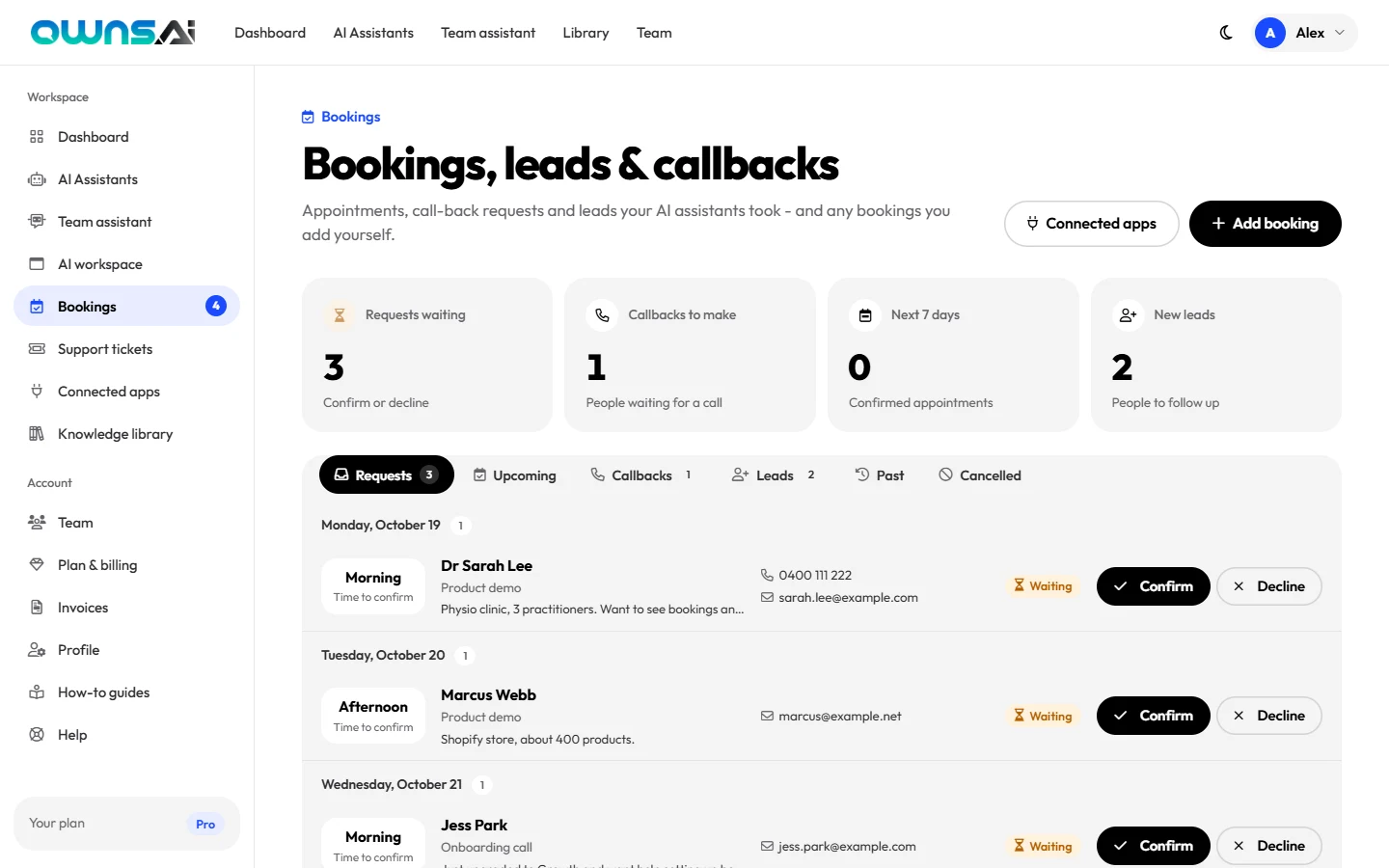 BookingsTake bookings and call-back requests in the chatSet services and hours, then confirm every request and manage your bookings in one place. 6 minEvery plan (the customers' name, email and phone on Starter and above)
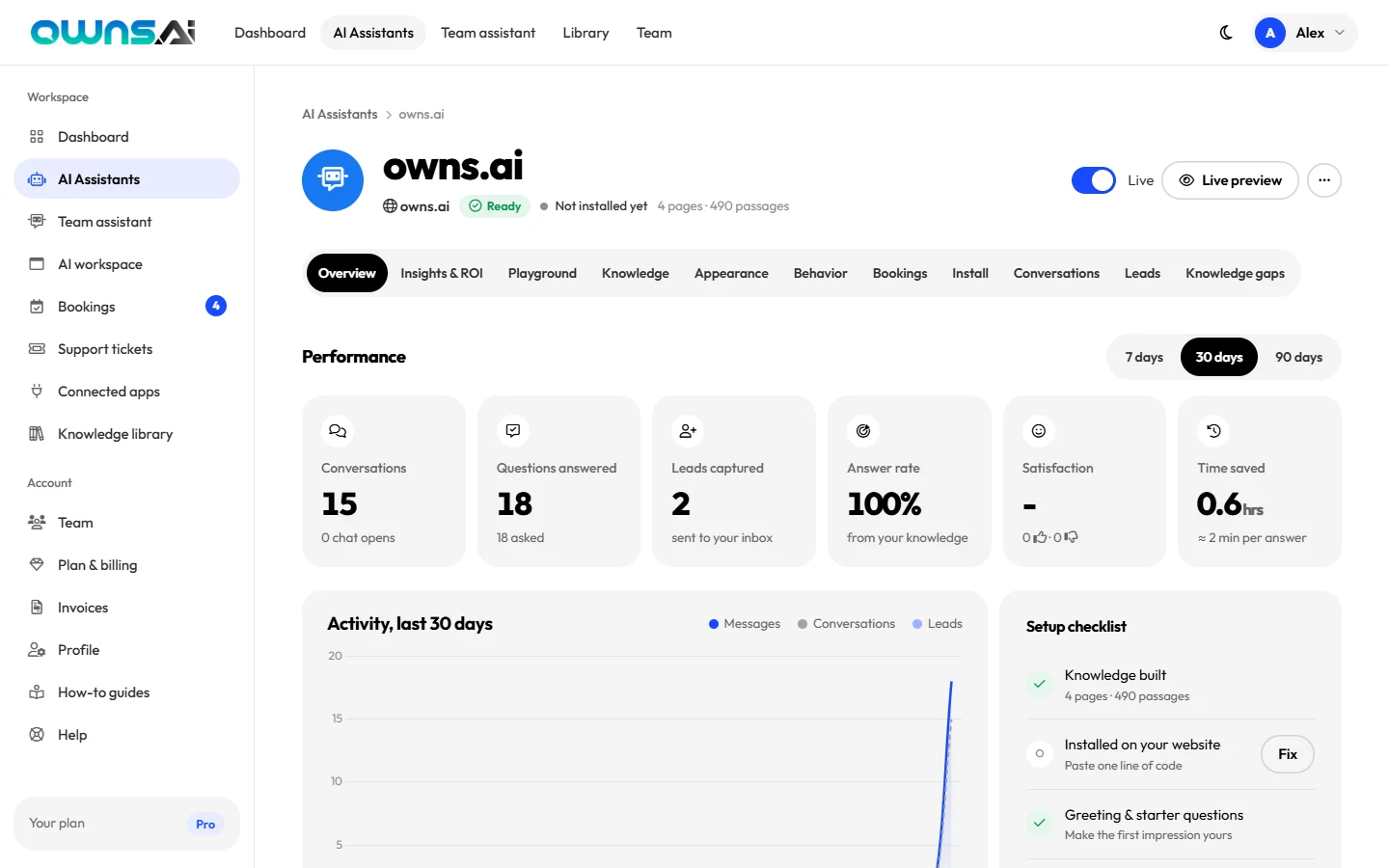 Getting startedBuild your first AI assistant from your websitePaste your website, watch it learn, and test your first answers in the Playground. 4 minEvery plan
 Getting startedInstall your assistant on your websiteOne line of code, any platform, plus how to check it's live and lock it to your own domain. 5 minEvery plan
We turn a business's own website into an assistant that answers customers, books jobs and never misses an enquiry. Join a small team in Surry Hills, Sydney, and work the way that suits you: in the office, from home, or both.
Come into Surry Hills when it helps, work from home when it doesn't. Every role is open to people anywhere in Australia.
Your work reaches thousands of businesses quickly. Engineers and customer teams sit side by side, so feedback arrives fast.
We agree on outcomes and a few shared hours, then trust you with the rest. School runs and appointments are just part of the week.
A laptop of your choice and help setting up a comfortable home office, whichever way you work.
Courses, conferences and books are paid for, and there's time in the week to use them. Engineers get model credits for experiments.
A few times a year the whole team gets together in Surry Hills to plan and build, and catch up properly. Travel is covered if you're interstate.
AI Engineering and Customer Relations, all based in Surry Hills, NSW, with hybrid and work from home available.
A real person reads every application, and we'll let you know either way.
Send your CV or a link to your work, plus a few lines on why the role interests you. It takes about five minutes.
A relaxed 30-minute video call with the hiring manager about you, the role and what you want next.
A practical conversation built around real problems from our product: a pairing session for engineers, a customer scenario for Customer Relations.
Meet the people you'd work with, in Surry Hills or on video, and ask us anything. Then we make a decision quickly.
Our office is at L1 457 Elizabeth Street, Surry Hills, NSW 2010, Australia, a short walk from Central Station and close to plenty of cafés. Use it as much or as little as you like.
We're always glad to hear from great AI engineers and people who love helping customers. Tell us what you'd like to work on.
Get in touchowns.ai is an equal opportunity employer. We welcome applications from people of every background, including Aboriginal and Torres Strait Islander peoples, people with disability, and people of every gender, age, sexuality and culture. All roles require the right to work in Australia.
How organisations put an owns.ai assistant on their front line, answering customers instantly, in any language, day and night. The results, in their own words.
Give them an assistant that knows your business. It takes about a minute, and it's free to start.
It reads your website, learns your services, prices, hours and policies, then answers your customers instantly. Day and night, in any language. No code, no training, no card.
Just the address. No forms to fill in, no documents to upload, no developer.
AI finds the pages that matter (services, pricing, FAQ, contact, policies) and reads every one in full.
Your assistant appears on a preview of your own website. Ask it anything. Happy? One line of code puts it live.
People book whoever answers first. Yours answers in seconds, at 2pm or 2am, while you're on a job.
It takes names, numbers and booking requests right in the chat, offering only the times you're really free.
It replies in whatever language your visitor writes in, even if your website is only in English.
It answers only from your website and the answers you add. When it doesn't know, it says so and takes their details.
Choose a design that fits your brand, or let the AI design one from your own website.
Every question it couldn't answer lands in your Knowledge Gaps report. Add the answer once, and it knows it from then on.
See it answering questions about your business in about a minute. If you don't love it, you've lost nothing.
Last updated: October 2026
owns.ai is owned and operated by XTO Pty Ltd (ACN 702 801 410), a company registered in Australia with its office at L1 457 Elizabeth Street, Surry Hills, NSW 2010, Australia. This policy explains what personal information XTO Pty Ltd ("owns.ai", "we", "us") collects, why, and what we do with it. It covers our website at owns.ai, your owns.ai account, and the AI assistants our customers place on their own websites. If anything here is unclear, write to [email protected].
For your account - the information you give us when you sign up, use the dashboard and pay - owns.ai is the controller.
For conversations on a customer's website - what a visitor types into an owns.ai assistant on a business's site, and any contact details they leave - the business that installed the assistant is the controller, and owns.ai processes that information on its behalf and on its instructions. If you chatted with an assistant on a business's website and have a question about your data, please contact that business first; we will help them respond.
Questions a team member asks the Team Assistant and its answers are stored as that person's own conversation history. They are visible only to that person - not to other team members, admins or the account owner - and are deleted on the same schedule as other transcripts.
When you use our home page builder without an account, we store the website address you entered, the preview assistant we built, and your IP address for rate limiting. Previews that are not claimed by creating an account are deleted after about seven days.
We do not sell personal information, and we do not use customer content or visitors' conversations to train AI models.
Answers are generated, and knowledge is indexed, by AI models running on the cloud infrastructure of our sub-processors. To answer a question we send that infrastructure the relevant passages from the business's knowledge (only passages the person asking is allowed to see), the recent conversation, the question and anything attached to it; when someone switches on web search in a workspace, the search terms are used to search the public web. To read an uploaded PDF or image we send the file for processing, and any temporary copy is deleted straight after. Our sub-processors may not use this information to train their models. Other service providers we rely on include PayPal (payments), our hosting and database providers, and our email delivery provider. Each is bound by contract to protect the information and use it only to provide their service to us. A current list of sub-processors is available on request from the address in section 11.
We use one essential cookie to keep you signed in (encrypted, HttpOnly) and a session cookie needed by our servers. The assistant widget on customers' sites stores a conversation reference in the visitor's browser storage so a chat survives moving between pages; it does not set tracking cookies. If we enable analytics on owns.ai itself, we will ask for consent where the law requires it.
Connections are encrypted with TLS. Passwords are hashed, sign-in cookies are encrypted and signed, payment data stays with PayPal, and access to production systems is restricted. No system is perfectly secure; if we learn of a breach affecting your information, we will notify you and regulators as the law requires.
We are based in Australia. Our providers, including our cloud and payment providers, may process information in countries other than yours, including outside Australia. Where required, we rely on appropriate safeguards such as standard contractual clauses.
Depending on where you live, you may have the right to access, correct, delete, restrict or object to the processing of your personal information, to data portability, and to complain to a data protection authority. Account holders can edit their details in Profile, export conversations and leads (on plans with export), and close their account. For anything else, email [email protected] and we'll respond within 30 days. We handle personal information in line with the Australian Privacy Act 1988 (Cth) and the Australian Privacy Principles; if you're not satisfied with our response, you can complain to the Office of the Australian Information Commissioner (oaic.gov.au) or your local data protection authority.
owns.ai is a business service and is not directed at children under 16. Businesses must not use their assistant to knowingly collect information from children where that is unlawful.
If we make material changes we'll update this page and, for significant changes, email account holders before they take effect.
XTO Pty Ltd (ACN 702 801 410)
L1 457 Elizabeth Street, Surry Hills, NSW 2010, Australia
[email protected]
Last updated: October 2026
These terms are an agreement between you and XTO Pty Ltd (ACN 702 801 410) of L1 457 Elizabeth Street, Surry Hills, NSW 2010, Australia ("owns.ai", "we", "us"), the company that owns and operates owns.ai, for the use of owns.ai. By creating an account or using the service you agree to them. If you are accepting on behalf of a business, you confirm you are authorised to bind it.
owns.ai builds AI chatbot assistants from the websites you point it at, hosts those assistants, and provides an embed code, a dashboard, analytics and related features. Features and limits depend on your plan as described on our pricing page.
Keep your sign-in details secure and tell us promptly about any unauthorised use. You are responsible for activity on your account. You must give accurate information and be at least 18.
Teams. The account owner may invite team members, who receive their own sign-in. The owner is responsible for their team's use of the service, manages billing, and decides who is an admin. Admins may manage assistants, documents and team members. Seats are limited by your plan. A member who leaves or is removed keeps their login as a separate free account; the business keeps the assistants and shared documents.
You can change plan or cancel at any time from Plan & billing (or from your PayPal account). When you cancel, you keep your paid features until the end of the current paid period, after which your account moves to the Free plan; your assistants and their knowledge are kept within Free plan limits, and assistants beyond the Free allowance are paused rather than deleted. When you move to a new paid plan, your previous subscription is cancelled.
Because every paid plan can be tried free first, payments are non-refundable and partial periods are not refunded, except where the law requires otherwise or where we decide to make an exception.
Each plan includes limits on assistants, monthly visitor messages, pages learned and other features. When a monthly message limit is reached, your assistants show visitors your contact details instead of answering until the next month or until you upgrade.
Assistants generate answers automatically using AI. Although they are designed to answer only from your information, they can make mistakes, misunderstand questions or present information out of context. You are responsible for reviewing your assistant's knowledge and answers, for keeping your website and custom answers accurate, and for any decisions or promises made to your customers. Do not use an assistant to give medical, legal, financial or other professional advice, or for any decision with legal or similarly significant effects on a person without human review.
You must not use owns.ai to: break any law; infringe anyone's rights; build assistants from sites you're not authorised to use; distribute malware or spam; deceive people into believing they're talking to a human where that is unlawful; collect sensitive information unlawfully; probe, overload or circumvent the service's security or limits; or resell the service without our written agreement. We may suspend assistants or accounts that breach these terms.
The owns.ai service, software, widget, design and brand are ours or our licensors'. These terms don't transfer any of it to you, except the right to use the service as described.
We work hard to keep owns.ai available but don't guarantee uninterrupted service. We may change or improve features; if we remove a material feature from a paid plan, we'll give notice and you may cancel.
To the extent permitted by law, the service is provided "as is" without warranties of any kind, and we are not liable for indirect, incidental, special or consequential losses, lost profits or lost data. Our total liability for any claim relating to the service is limited to the amount you paid us in the 12 months before the claim. Nothing in these terms limits liability that cannot be limited by law, including rights you have under consumer protection laws.
You may close your account at any time from your profile. We may suspend or terminate accounts that breach these terms or that we're required to close by law. On termination, your right to use the service ends; sections that by their nature should survive will survive.
These terms are governed by the laws of New South Wales, Australia, and you and we submit to the non-exclusive jurisdiction of the courts of New South Wales, unless the law of your country gives you the right to bring proceedings where you live. Nothing in these terms excludes any right you have under the Australian Consumer Law or other consumer protection laws that cannot be excluded.
We may update these terms. For material changes we'll email account holders at least 14 days before they take effect. Continuing to use owns.ai after that means you accept the updated terms.
XTO Pty Ltd (ACN 702 801 410)
L1 457 Elizabeth Street, Surry Hills, NSW 2010, Australia
[email protected]
Free previews are kept for 7 days. Building a fresh one takes about a minute - and it's still free.
Build a new oneIt scanned your website to learn about your business and design a suitable chatbot interface - now it's ready to assist your customers. Go on, ask anything a customer would ask.
Ten templates, ten colour themes, any combination. Your choice is saved once you claim your assistant.
A picture of your homepage - with your real, working assistant on it.
No card needed · 20 seconds · Already have an account? Sign in
Fine-tune how it looks and talks, add your own answers, then install it with one line of code.
Open in dashboardBooking handled by an AI assistant powered by owns.ai.
The assistant it pointed to isn't available any more. You can build a fresh one from your website in about a minute - free.
Build my AI assistantWe read your website and built an assistant that already knows your business - your services, prices, hours and policies - and answers your customers 24/7, in any language.
Your website, with your new assistant in the corner.
Free for as long as you like - no card, no trial that runs out.
Sign in to see what your AI assistant has been up to.
New to owns.ai? Create your free account
Build an AI assistant that knows your business in about 60 seconds.
The AI assistant you're claiming Your assistant yourbusiness.com ReadyAlready have an account? Sign in
Enter your email and we'll send you a link to choose a new one. It works once and expires in 60 minutes.
Dashboard
Your AI assistants, what they answered, and who they brought in.
AI Assistants
Every chatbot on your account: test it, teach it, design it and put it on your website.
We open the site in a real browser, let AI pick the pages that matter, read every one of them and turn them into knowledge your assistant answers from. It takes about a minute.
Your subscription, this month's usage and every invoice.
Secure checkout with PayPal. Cancel any time from Plan & billing.
Every payment, with a printable invoice for your records.
Invoices show the business details from your profile. Update them there and every invoice reflects the change.
Your details, security and email preferences.
Permanently close your account. Any subscription is cancelled so you're never billed again, every assistant stops answering, and its knowledge is deleted. Invoices are kept for tax records. This can't be undone.
Knowledge library
Upload documents and write articles. Choose who each one is for - you, your team, or your website visitors too.
Team
Everyone gets their own sign-in, the team assistant and the shared knowledge library.
Your AI workspace
A private AI chat app for your team and the people you choose - at your own address, in your own brand.
Bookings
Appointments, call-back requests and leads your AI assistants took - and any bookings you add yourself.
Support
Complaints, problems and requests your AI assistants passed on to your team - filled in from the chat, tracked until they're resolved.
Connected apps
Every appointment and callback your AI assistants take lands in the app you already run your jobs from - as a client and a request, job or lead - and stays up to date when it's confirmed, moved or cancelled.